
Last Updated: November 03, 2026
Creating clear and professional invoices is an important part of running a freelance business or small company. An invoice tells your customer what you provided, how much they owe, and when payment is expected. It also helps you organize sales, track outstanding balances, and maintain accurate business records.
Our free invoice generator makes this process easier. You can enter your business and client details, add products or services, set quantities and prices, apply an optional discount or tax rate, and calculate the amount due automatically. When your invoice is ready, you can print it or save it as a PDF.

Whether you are a freelancer, consultant, designer, contractor, or small business owner, this guide explains how to create a useful invoice and manage your billing information more effectively.
Free Invoice Generator
Create, calculate, and print a professional invoice for your business.
Your Business
Bill To
Invoice Items
| Description | Quantity | Unit Price | Amount | Remove |
|---|---|---|---|---|
| $100.00 |
Review your details before printing. Use your browser’s print window and select “Save as PDF” to create a PDF copy. This tool does not save invoice data on a server. Tax rates and invoice requirements vary by location and business type.
What Is a Free Invoice Generator?
A free invoice generator is an online tool that helps businesses prepare invoices without manually calculating every amount. Instead of creating a new document from scratch, you enter the required information into a structured form.
The free invoice generator above is designed for freelancers and small businesses that need a straightforward way to prepare invoices. It includes fields for invoice details, business information, customer information, item descriptions, quantities, unit prices, discounts, taxes, and payments already received.
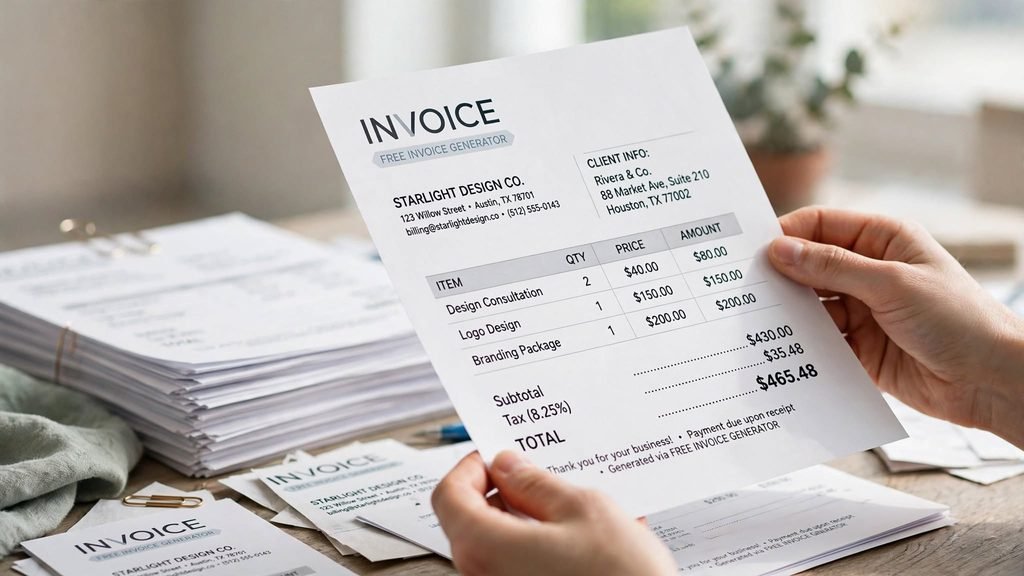
The tool calculates the subtotal, discount amount, tax amount, total, and remaining balance. You can then use your browser’s print function to print the invoice or select the option to save it as a PDF.
The calculator works directly in your browser. It does not send the information you enter to a server or store your customer details in an online account.
How to Use the Free Invoice Generator
Creating an invoice with the tool is simple. Follow these steps to prepare a document that clearly explains the transaction.
1. Enter Your Invoice Number
Start with a unique invoice number. For example, you could use INV-1001 or another numbering format that fits your business.
A consistent numbering system makes it easier to identify invoices, find previous transactions, and organize your records. Avoid reusing the same number for different invoices.

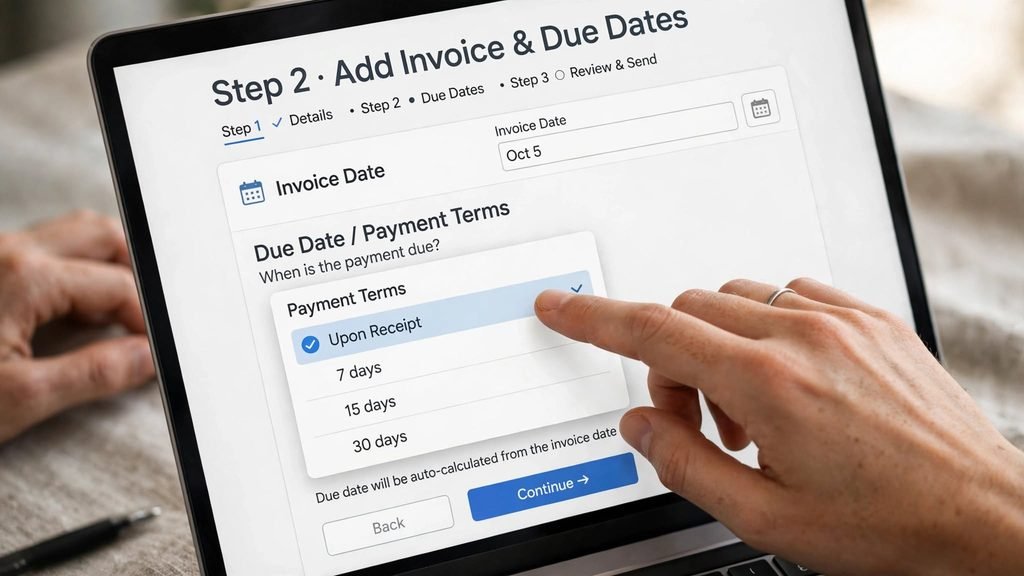
2. Add the Invoice and Due Dates
Enter the date the invoice is issued and the date payment is expected. The invoice date helps identify when the document was created. The due date communicates your requested payment deadline.
Choose payment terms that reflect your agreement with the customer. The generator offers common options such as payment upon receipt, 7 days, 15 days, and 30 days. These are editable planning choices, not a statement that one deadline is legally required for every business.
3. Enter Your Business Information
Add the name of your business or freelance activity, your contact email, address, and phone number if appropriate.
Clear contact information helps customers identify who issued the invoice and where to direct questions. If you use a registered business name, check which business details should appear on your invoices under the rules that apply to your location and business structure.


4. Add Your Client’s Details
Enter the customer’s name or company name, email address, and billing address.
Check the spelling and details before printing. Incorrect customer information can make an invoice harder to process or match with the customer’s records.
5. Add Products or Services
Use the invoice items section to describe the work or products you supplied.
For each item, enter:
- A clear description of the product or service
- The quantity supplied
- The price per unit
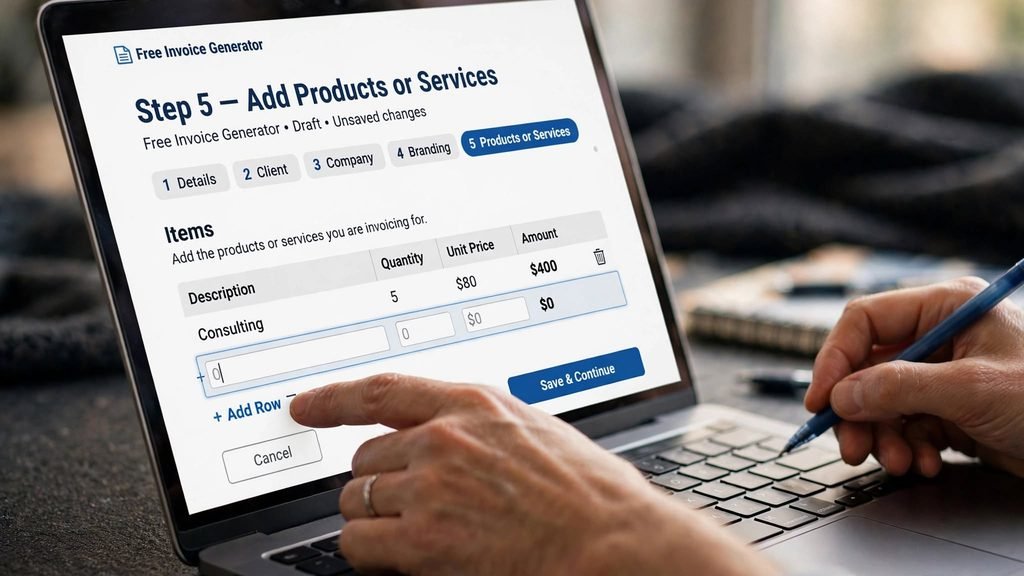
The free invoice generator automatically multiplies the quantity by the unit price to calculate each line amount. You can add more rows when an invoice includes several services or products, or remove rows you do not need.
For example, if you provide five hours of consulting at $80 per hour, the line amount will be $400.

6. Apply a Discount or Tax Rate
If you offer a discount, enter the applicable percentage in the discount field. The tool calculates the discount from the subtotal.
You can also enter a tax percentage. The calculator applies the entered rate to the subtotal after the discount.
Tax rules vary by location, product, service, and business circumstances. The calculator does not determine whether tax is required or which rate applies. Confirm the appropriate treatment before sending your invoice.
7. Enter Payments Already Received
If the customer has already paid part of the invoice, enter that amount in the Amount Paid field.
The tool subtracts the payment from the invoice total and displays the remaining balance. If no payment has been received, leave the amount at zero.


8. Print or Save Your Invoice
Before printing, review the business name, customer details, invoice number, dates, item descriptions, and totals.
Select Print / Save as PDF. Your browser will open its print window, where you can choose a printer or select Save as PDF.
Keep a copy of the final invoice with your other business records.
What Should a Professional Invoice Include?
A useful invoice should make the transaction easy to understand. Although exact legal requirements vary, many professional invoices include the following information:
- A unique invoice number
- The invoice issue date
- The payment due date
- The seller’s business name and contact details
- The customer’s name and billing details
- A description of the products or services supplied
- Quantities and unit prices
- Subtotal and any applicable discount
- Applicable tax details
- The final amount due
- Payment instructions and agreed terms
Some industries, contracts, and jurisdictions require additional information. For example, a transaction with a government customer may have specific documentation requirements. Always check the rules that apply to your business and customer.
How Invoice Totals Are Calculated
Understanding the calculations helps you check that your invoice is accurate.
Subtotal: Add the amount of every line item.
Line amount = Quantity × Unit Price
Discount amount: Multiply the subtotal by the discount percentage.
Discount = Subtotal × Discount Rate
Taxable amount in this tool: Subtotal − Discount
Tax amount: Multiply the discounted subtotal by the tax percentage.
Tax = (Subtotal − Discount) × Tax Rate
Invoice total: Add the tax to the discounted subtotal.
Total = Subtotal − Discount + Tax
Balance due: Subtract payments already received.
Balance Due = Invoice Total − Amount Paid
For example, suppose your services total $500, you offer a 10% discount, and you enter a 5% tax rate.
- Subtotal: $500
- Discount: $50
- Amount after discount: $450
- Tax: $22.50
- Invoice total: $472.50
- Payment received: $100
- Remaining balance: $372.50
This example demonstrates the calculator’s arithmetic. It does not establish that a 5% tax rate is appropriate for your transaction.
Why Accurate Invoices Matter for Freelancers and Small Businesses
Invoices are more than payment requests. They are supporting documents that help you understand your business activity.
Consistent invoicing can help you:
Track revenue: Keep a record of what you billed customers and when.
Monitor unpaid balances: Identify invoices that still need attention.
Organize customer transactions: Find the details of previous services or purchases more easily.
Review business performance: Compare sales activity over time and identify patterns.
Support bookkeeping: Keep documents that help explain the income recorded in your business records.
The IRS explains that invoices and other supporting documents are important parts of business recordkeeping. Its official recordkeeping guidance explains how business transactions and supporting records contribute to an organized recordkeeping system.
Tips for Better Invoicing
A few consistent habits can make invoicing easier as your business grows.
Use Clear Descriptions
Avoid vague descriptions such as “work completed” when you can provide more detail. A phrase such as “Website homepage design” or “Five hours of consulting services” gives the customer a clearer explanation of the charge.


Send Invoices Promptly
Prepare invoices soon after completing the work or reaching an agreed billing milestone. Delays can make it harder to track outstanding payments and maintain a consistent billing routine.
Keep Copies of Every Invoice
Save copies of issued invoices and related payment records. Organize them by year, customer, or invoice number so you can find them when needed.


Separate Business and Personal Records
Keep business transactions organized separately from personal spending. Our guide, How to Keep Business and Personal Expenses Separate, explains practical ways to maintain clearer records.
Review Your Pricing
Your invoice totals should reflect the prices you have agreed with your customers. If you need help evaluating your service prices, try our Freelance Hourly Rate Calculator.
You can also use the Profit Margin Calculator to examine how revenue and business expenses affect profitability.

For additional guidance, read our Small Business Bookkeeping Basics for Beginners and Essential Records Every Small Business Should Keep.
Final Thoughts
A clear invoice created with our free invoice generator helps you communicate charges, track payments, and maintain organized business records. You do not need to create every invoice from scratch or calculate each line manually.
Our free invoice generator gives freelancers and small business owners a practical way to prepare invoices, calculate totals, and print or save a PDF copy. Enter accurate details, review the applicable tax treatment, and keep a copy of each issued invoice.
Building a consistent invoicing process can make everyday business administration easier and help you stay organized as your business grows.
Frequently Asked Questions
Yes. You can use the tool on this page to enter invoice details, calculate totals, and print or save the invoice as a PDF without creating an account.
Yes. Freelancers can use the generator to list services, hours or quantities, unit prices, discounts, and applicable taxes. It can be used for many types of independent services.
Yes. Select the Add Item button to create additional rows. Each row has its own description, quantity, and unit price, and the tool calculates the line amount automatically.
It calculates a tax amount using the percentage you enter. It does not determine whether you must charge tax or identify the correct rate for your location or transaction.
Yes. Select Print / Save as PDF, then choose Save as PDF in your browser’s print window. The exact wording may vary by browser and operating system.
No. The calculator performs its calculations in your browser and does not send the entered information to a server or save it in an online account. If you save or print the invoice, keep the resulting file somewhere secure.
Yes. It is designed for common freelance and small business billing needs. However, some businesses may need additional fields, tax details, purchase order references, or industry-specific information.
No. An invoice requests payment for products or services. A receipt generally confirms that payment has been received. If a customer pays an invoice, keep an appropriate record of that payment as well.